During long-form writing, messaging, or meeting note taking, dictating directly into a computer often results in typos due to background noise or homophone recognition errors. NinoPad uses a "Dictate on Mobile First, Proofread, and Send" workflow for optimal speed and accuracy.
1. Draft Text Mode vs. Real-Time Keystrokes
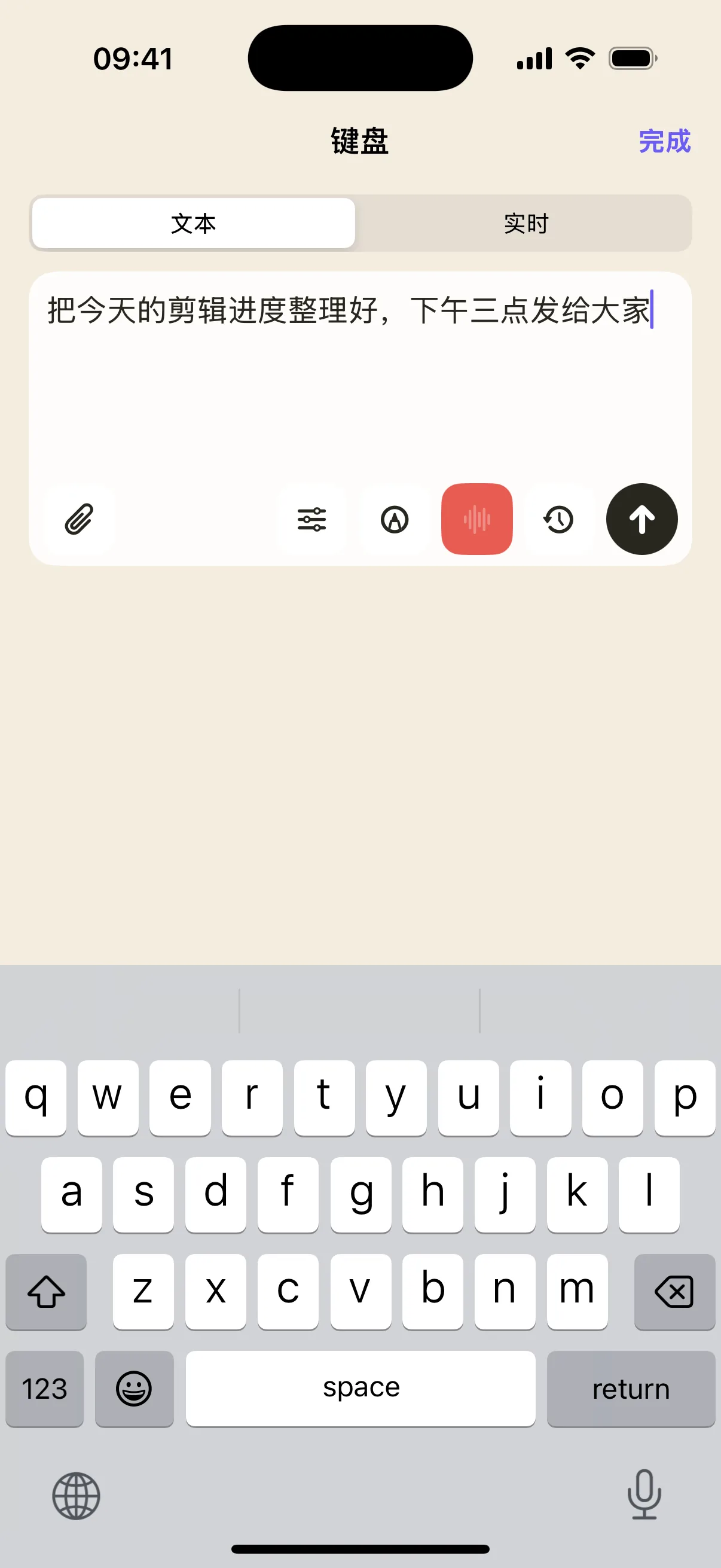
- Text Mode (Draft Pre-Edit): Designed for paragraphs and voice dictation. Text is drafted and edited locally on your phone. When you tap "Send", the full text block is sent cleanly into your Mac's active cursor position without moving your desktop focus prematurely.
- Real-Time Mode (Direct Keypress): Designed for Terminal commands and hotkeys, sending each keystroke (like
Ctrl+C,Tab,Esc, arrow keys) immediately to your Mac.
2. Four-Step Voice Dictation Workflow
- Open Text Mode: Tap "Realtime Keyboard" from the Work deck, then select "Text" at the top of the input sheet.
- Tap Microphone to Dictate: Tap the mic icon at the bottom of the screen to activate iOS system speech recognition and dictate your text in real time.
- Proofread on Touch Screen: Tap the mic again to stop recording. Directly edit punctuation, fix homophones, or adjust formatting on your phone's touch keyboard.
- Inject to Mac: Click your Mac cursor into the desired document or chat window, then tap the Up Arrow ("Send") on your phone. The text appears instantly at the target location.
3. History Records & Quick Clear
Tap "History" in the input sheet to retrieve previous dictations and reload them into the draft area for quick re-use. Ensure needed snippets are saved before tapping Clear to maintain a clean workspace.