Whether controlling media playback from the couch, walking around a conference room during a presentation, or turning your iPad into a portable touch companion for your Mac, NinoPad delivers a responsive, low-latency remote control experience.
Powered by peer-to-peer local network streaming, a quick QR scan lets you monitor your Mac desktop, glide cursor pointers, scroll smoothly with two fingers, and type via draft or real-time keyboards.
1. Local Screen Monitoring & Direct P2P Streaming
Launch NinoPad on both devices connected to the same local Wi-Fi. Cursor movement and typing require macOS Accessibility permission; live screen streaming requires Screen Recording permission. Once paired, open a test window on your Mac to verify the mobile stream matches your desktop in real time.
2. Dual Display Modes: Studio View vs. Fullscreen Mirror
NinoPad offers flexible display modes for different workflows:
1. Studio View: View & Control Unified
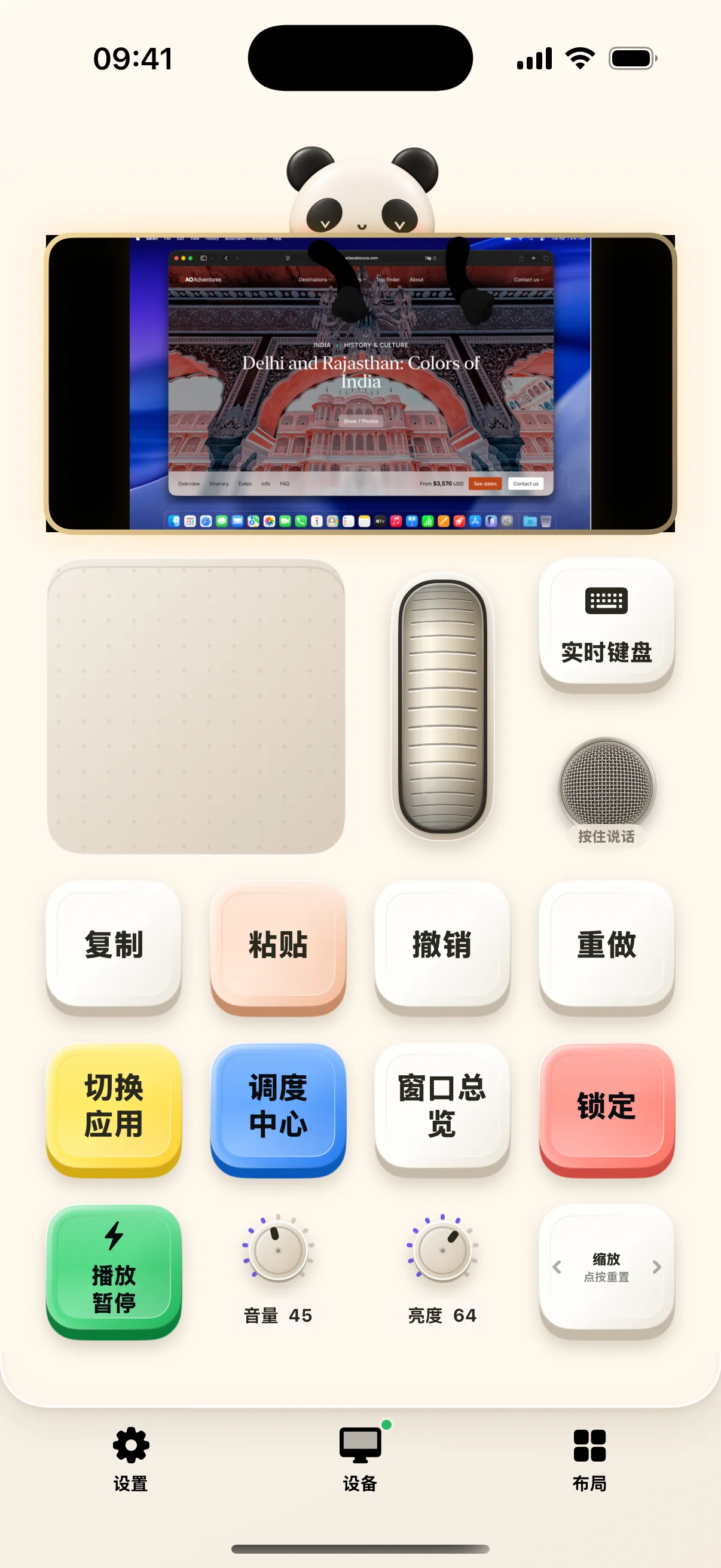
The top half of the screen displays a live stream of your Mac's active window, while the lower half provides a generous virtual trackpad, smooth scroll slider, and frequent shortcuts. Perfect for one-handed operation while monitoring render progress or build outputs.
2. Fullscreen Immersive Mirror
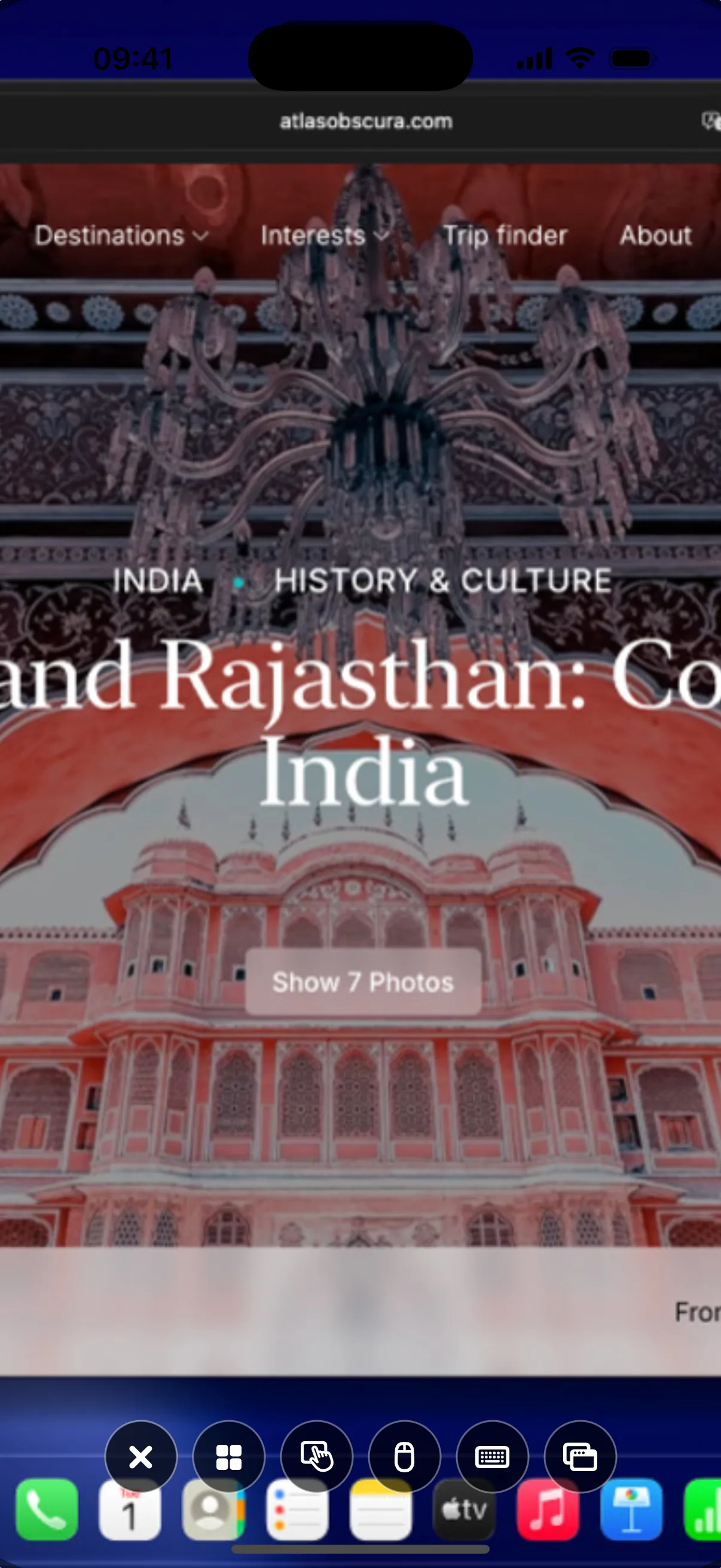
Tap the fullscreen icon in the preview window for an expansive view of your entire macOS desktop. Interact directly with multi-touch gestures and return to the main deck at any time.
3. Virtual Trackpad: Intuitive Gesture Controls
NinoPad brings Apple Magic Trackpad core gestures directly to your touch screen:
- Single-Finger Glide: Smooth cursor pointing with adaptive acceleration curves;
- Single-Tap / Two-Finger Tap: Single tap performs Left Click; two-finger tap triggers the Contextual Right-Click menu;
- Two-Finger Scroll: Natural inertial scrolling for effortless reading across long web pages and code files;
- Double-Tap & Drag: Easily drag window title bars, select text blocks, or reposition timeline clips.
4. Dual-Mode Typing: Draft Pre-Edit vs. Real-Time Terminal
NinoPad provides two tailored input modes for different scenarios:
- Text Mode (Draft Pre-Edit): Ideal for long paragraphs, message drafts, and dictation. Use iOS voice dictation and keyboard tools on mobile, review and polish text, then tap "Send" to inject the entire block into your Mac cursor position at once.
- Real-Time Mode (Direct Keystrokes): Optimized for Terminal command lines and hotkey combos. Every keypress (e.g.,
Ctrl+C,Cmd+W,Tab,Esc, arrow keys, Return) is transmitted instantly to your active Mac window.