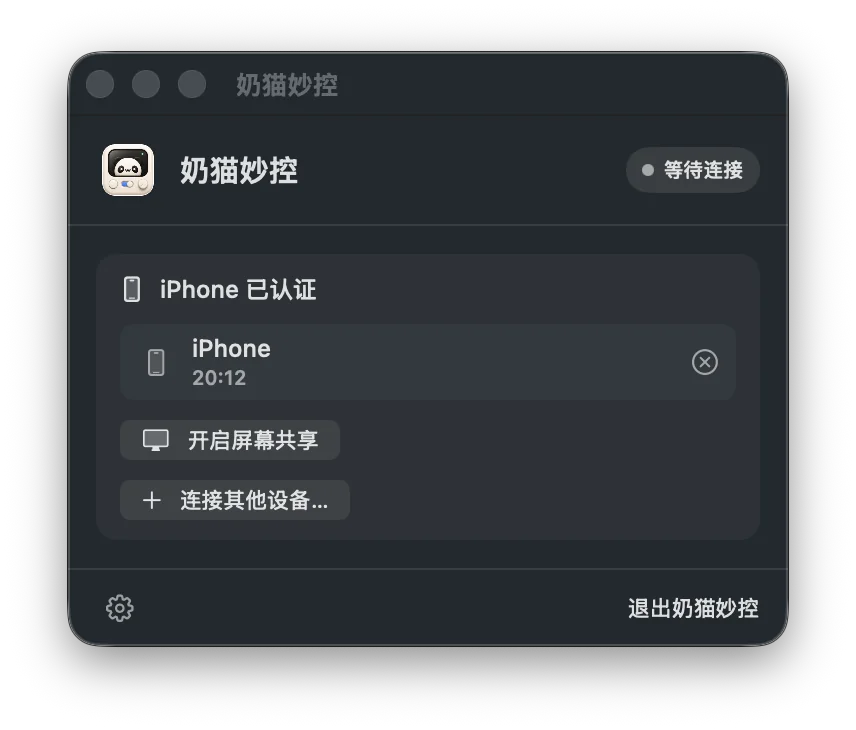
As a dedicated Mac companion and desktop streaming utility, NinoPad requires essential macOS system authorizations to perform keystroke injection, mouse cursor control, and low-latency screen streaming. Proper permission configuration ensures all features run smoothly.
This guide explains each core permission, step-by-step setup in macOS System Settings, troubleshooting tips for common connection issues, and our peer-to-peer local network privacy architecture.
1. Core macOS Permissions and Their Purposes
NinoPad requests the following permissions for control and streaming:
- Accessibility: Allows the Mac companion to receive simulated keystrokes, scroll wheel events, shortcut combos, and trackpad gestures from your phone;
- Screen Recording (Screen & System Audio Recording): Enables low-latency capture and streaming of your Mac desktop frames to your mobile device in Studio View and Fullscreen Mirror mode;
- Local Network: Allows NinoPad on iOS and macOS to discover each other automatically via Bonjour protocol on the same Wi-Fi network for high-speed direct communication.
2. Step-by-Step macOS Permission Configuration
When launching the Mac companion app for the first time, configure permissions via System Settings:
- Click the Apple menu in the top-left corner of your Mac screen and select System Settings.
- In the left sidebar, navigate to Privacy & Security.
- Click Accessibility, locate "NinoPad" in the list, and toggle the switch to ON.
- Return to the previous screen, click Screen Recording (or "Screen & System Audio Recording"), and ensure "NinoPad" is enabled.

3. Troubleshooting Common Connection Issues (FAQ)
Why does QR code scanning show a connection timeout?
Ensure that both your iPhone/iPad and Mac are connected to the same Wi-Fi router or local network. If your router has "AP Isolation (Client Isolation)" or "Guest Mode" enabled, devices cannot communicate directly. Switch to a standard home or office Wi-Fi network.
Why did keypresses stop responding after a macOS major update?
After a macOS update or reinstall, check if the Accessibility permission remains toggled ON for the currently installed NinoPad app. If it is already ON but not responding, remove the entry from the list using the "-" button and re-add NinoPad.
Why is desktop streaming showing a black screen?
Verify that Screen Recording permission is enabled, then quit and relaunch the NinoPad Mac companion app as prompted by macOS. Reopen the stream on your phone to resume preview.
4. Local Peer-to-Peer Privacy & Security
All video frames, keystrokes, and trackpad data are transmitted strictly over your local Wi-Fi network via direct peer-to-peer (P2P) sockets. No screen data or user input is ever uploaded to cloud servers, ensuring total privacy and near-zero latency.