Navigating dozens of open browser tabs and hunting for small UI buttons slows you down. NinoPad's Browser layout brings tactile tab scrubbing, one-tap URL bookmarks, and instant in-page searching directly to your fingertips.
1. Enter Browser Layout and Launch Mac Browser
Tap the "Browser" preset on NinoPad. If your browser isn't open yet, tapping the main icon will bring it to the foreground automatically.
2. One-Tap URL Bookmarks
Tap your preset bookmark buttons to open frequent portals, documentation sites, or dashboard links immediately in a new tab.
3. Smooth Tab Switching Slider
Slide your thumb across the tactile tab slider at the bottom of the screen to smoothly cycle through dozens of open browser tabs without clicking small tab titles.
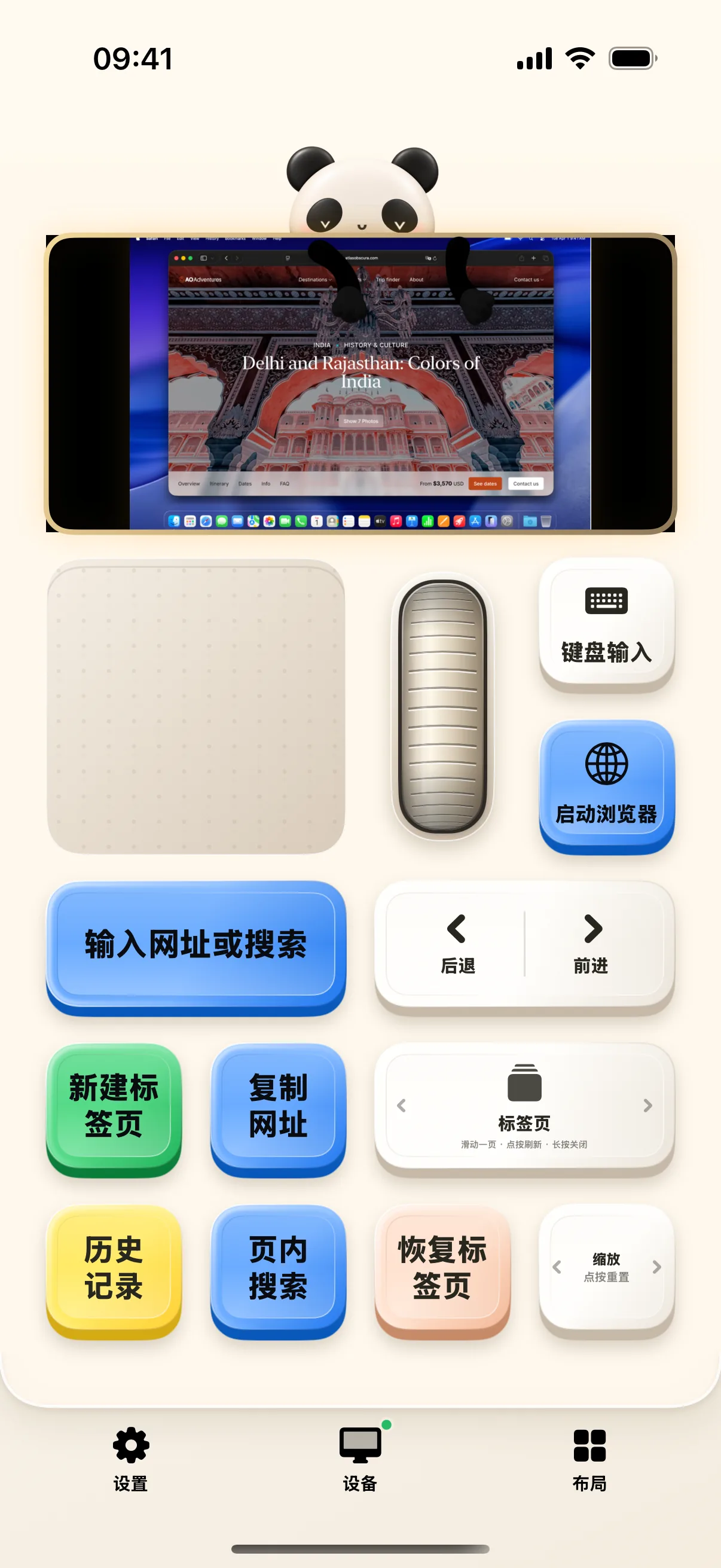
4. Instant In-Page Search (⌘F)
Tap the Search button to focus the in-page search bar on Mac, dictate or type your query, and tap Previous/Next to jump between matching occurrences.
Frequently Asked Questions
Which desktop browsers are supported?
NinoPad supports Safari, Google Chrome, Arc, Microsoft Edge, Brave, and Mozilla Firefox out of the box.
Can I bind custom bookmark buttons to my favorite research portals?
Yes. In the Browser desktop editor, add a 'Open URL' button and enter your desired web address (e.g., https://github.com or https://arxiv.org).