Repetitive desktop tasks like logging timestamps, pasting formatted templates, and pressing Save can be automated into a single tap. NinoPad's multi-step macro builder lets you chain text injection, safety delays, and shortcut commands into a unified sequence.
1. Add a Multi-Step Macro Button
Enter desktop edit mode on NinoPad, tap "Add Widget", choose "Macro / Automation", and name your new button "Log & Save".
2. Step 1: Add Text Injection
In the macro steps list, add a "Send Text" step. Type your template content (e.g., [LOG ENTRY] Daily Review - ) and toggle "Append Return" to advance the line automatically.
3. Step 2: Add a Safe Delay Step
Add a "Delay" step and set the duration to 200ms. This brief pause gives the Mac text editor sufficient time to process character rendering before receiving subsequent hotkeys.
4. Step 3: Add the ⌘S Shortcut
Add a "Shortcut" step, record ⌘S (Command + S), and label the step "Save Document".
5. Test Run and Verify in Mac Document
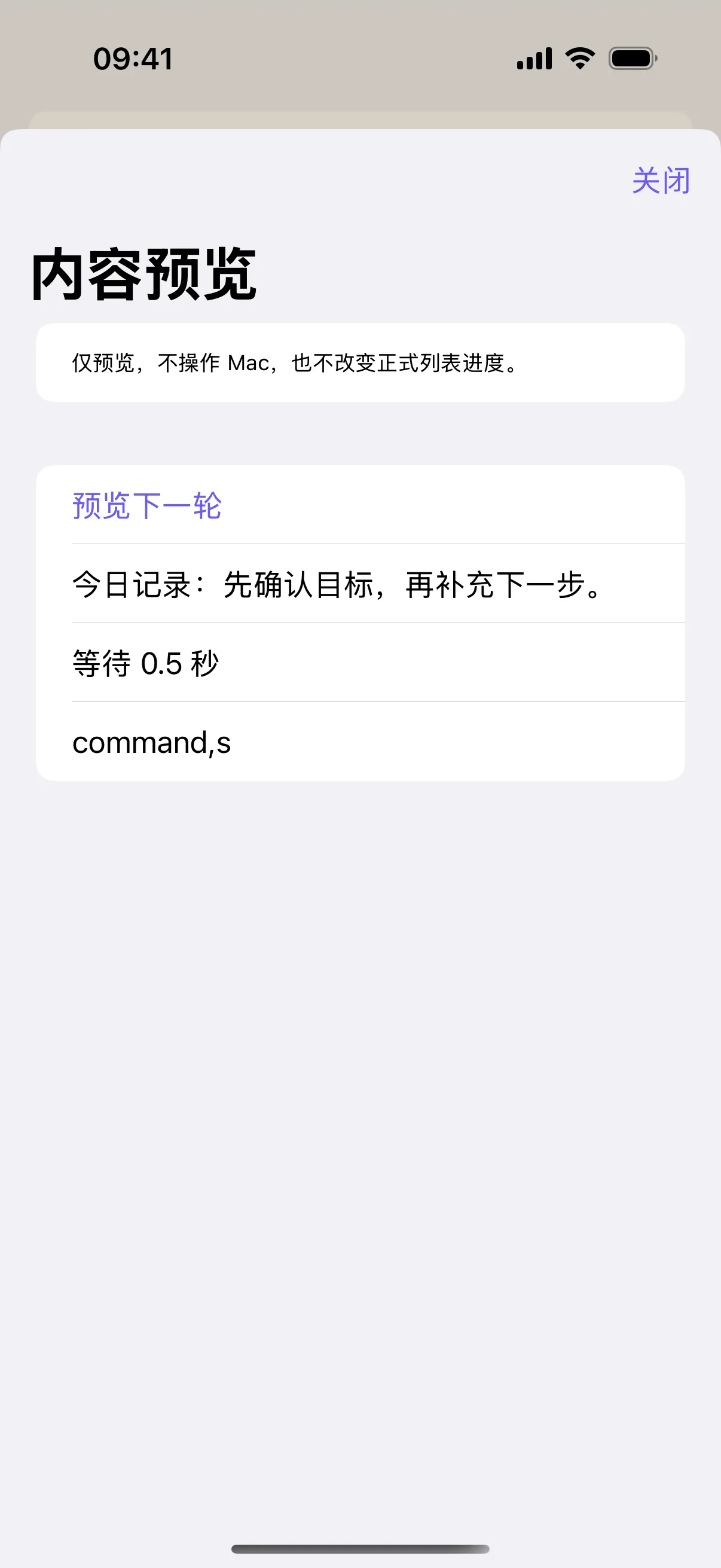
Tap "Run Step-by-Step" or exit edit mode and press the button. Watch your Mac document receive the text entry and trigger the save shortcut seamlessly.
Frequently Asked Questions
Why does a 'Save As' dialog appear when executing the macro?
The target document has never been saved initially, or the active software maps ⌘S to a different command. Manually save the file once first, verify the app's hotkey behavior, and re-run.
Why was text typed into the wrong window even with a delay step?
Delays only pause execution for a fixed duration; they do not switch window focus. Ensure your Mac target app and document cursor are focused, or add an explicit 'Switch App' step.
Why didn't the document save when preview shows 'command, s'?
The on-screen preview describes step definitions without executing actual system shortcuts. Connect to your Mac and test run the button to verify file saving.
How do I stop an automation that is running in a loop?
The editor provides a 'Stop Automation' button during execution; you can also configure a dedicated emergency stop button. For initial practice, keep the mode set to 'Run Once'.