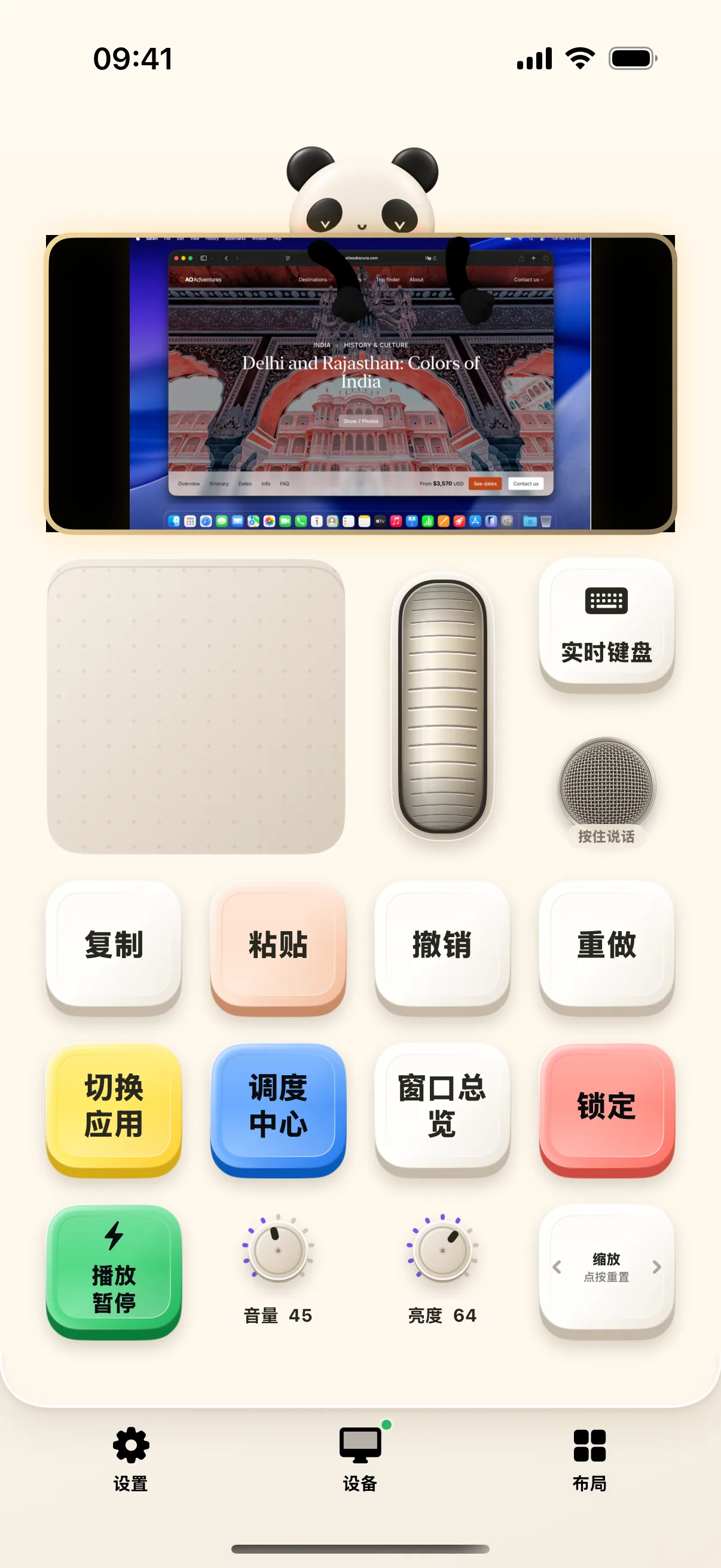
Start your journey with NinoPad's flagship Work layout. Designed as the ultimate everyday desk companion, it unifies a generous virtual trackpad, real-time typing input, smooth vertical scroll slider, and essential productivity shortcuts onto a single screen.
1. Precision Trackpad & Scroll Slider
Glide your finger across the trackpad area to move the Mac cursor smoothly. Slide your thumb along the vertical scroll bar for effortless reading across long web pages and documents.
2. Real-Time Typing & Draft Text Mode
Tap "Realtime Keyboard" to type directly into your Mac, or switch to "Text Mode" to dictate and polish paragraphs before sending them in one clean burst.
3. One-Tap Undo, Redo & Clipboard Actions
Access prominent physical-style buttons for ⌘Z (Undo), ⇧⌘Z (Redo), ⌘C (Copy), and ⌘V (Paste) without stretching your left hand across the keyboard.
4. Quick App Switcher & Search (⌘Space)
Tap the Search key to trigger Spotlight or Raycast, and tap App Switcher (⌘Tab) to cycle through open applications seamlessly.
Frequently Asked Questions
How do I switch between the Work desktop and layout editor?
Tap 'Layouts → Edit Current Desktop' at the bottom of the screen to add or rearrange widgets; tap 'Done' to return to live control mode.
Can I customize the quick action buttons on the Work layout?
Yes. Every button on the Work layout can be customized with your favorite shortcuts, app launches, or text snippets.