Control your desk lighting, ambient lamps, and room climate without opening heavy dashboard apps. NinoPad connects directly to Home Assistant, Apple Home, and Matter ecosystems with tactile on/off switches and smooth rotary dimmers.
1. Connect Home Assistant via Local Token
In the Smart Home layout, tap "Connect Home", enter your server address and long-lived access token to discover all entities automatically.
2. Add Smart Lights & Scene Buttons
Select your desk lamp, ceiling light, or light strip from the entity list and place a custom widget on your deck.
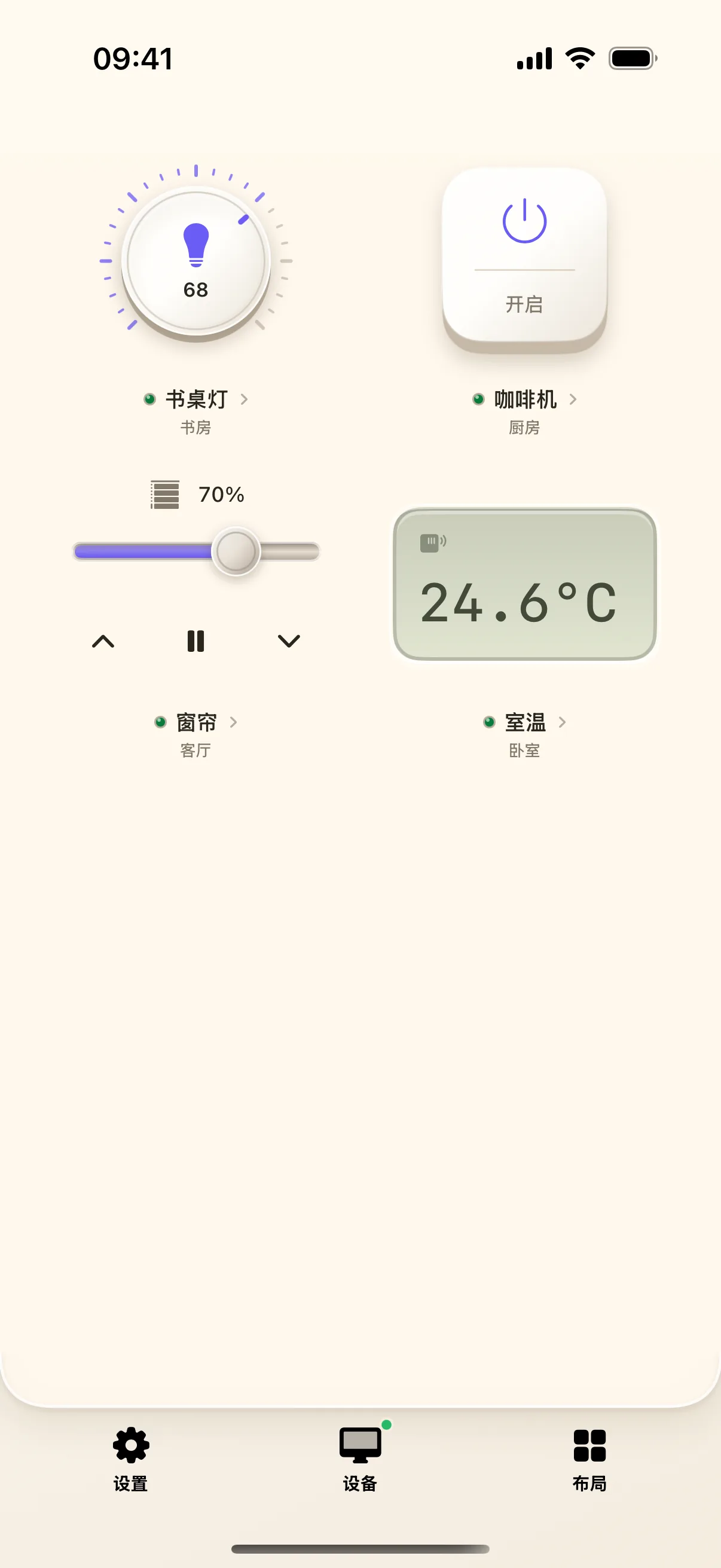
3. Stepless Rotary Dimming
Tap the center of the dial to toggle power; glide your finger around the outer knob ring to smoothly adjust brightness from 1% to 100%.
4. Trigger One-Touch Room Scenes
Configure mood buttons like "Focus Work" (cool bright light) or "Cinema Mode" (warm dim lighting) for instant atmosphere changes.
Frequently Asked Questions
Where do I generate a Long-Lived Access Token in Home Assistant?
In your Home Assistant dashboard, click your Profile icon at the bottom of the sidebar, scroll down to 'Long-Lived Access Tokens', click 'Create Token', and copy the generated key into NinoPad.
Does NinoPad require cloud internet access to control smart devices?
No. NinoPad communicates directly with your local Home Assistant instance over your local Wi-Fi network with zero cloud dependency.