Complex 3D modeling software like Blender relies heavily on number pads and extensive multi-key shortcuts. NinoPad's Creative layout puts 3D viewport camera angles, object selection, and mode toggles within thumb reach.
1. Launch Blender & Enter Studio View
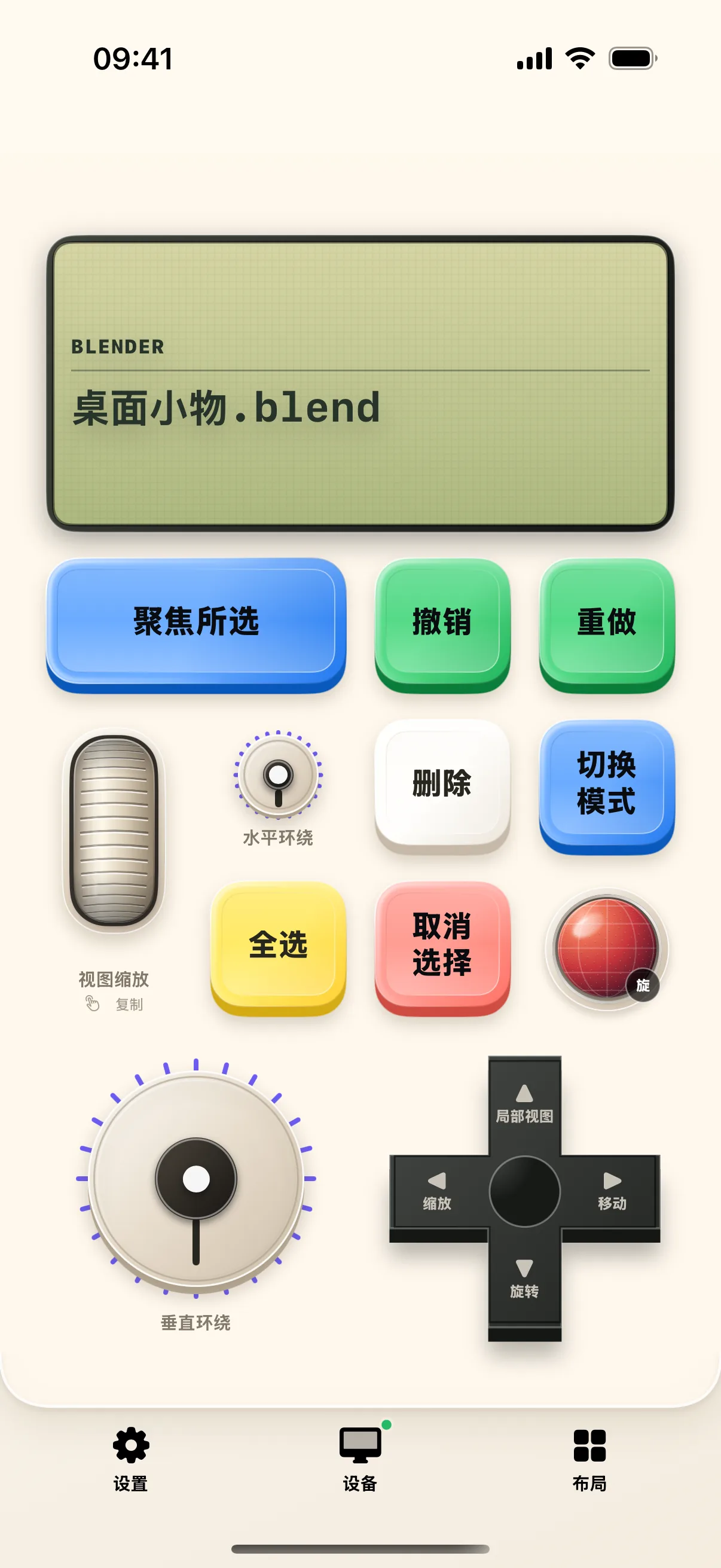
Open Blender on your Mac. NinoPad automatically switches to the Blender preset deck with dedicated viewport and transform shortcuts.
2. Viewport Orbiting & Camera Jumps
Tap Top, Front, Right, and Camera view buttons to align your 3D perspective instantly, replacing the need for a physical numeric keypad.
3. Selection, Focus & Frame Selected
Tap "Select All (A)", "Focus Selected (Numpad .)", and "Toggle X-Ray" to navigate complex scenes with fluid hand movements.
4. Switch to Edit Mode & Sculpting Tools
Toggle between Object Mode and Edit Mode with a single tap, and trigger Extrude (E), Inset (I), and Bevel (Ctrl+B) operations cleanly.
Frequently Asked Questions
How does NinoPad recognize Blender automatically?
When Studio View is active, NinoPad monitors the frontmost Mac application and loads the corresponding shortcut map automatically.
Can I customize the viewport navigation dial sensitivity?
Yes. In the knob property panel, adjust the acceleration multiplier to achieve either pixel-precise micro-rotation or fast 360-degree sweeps.