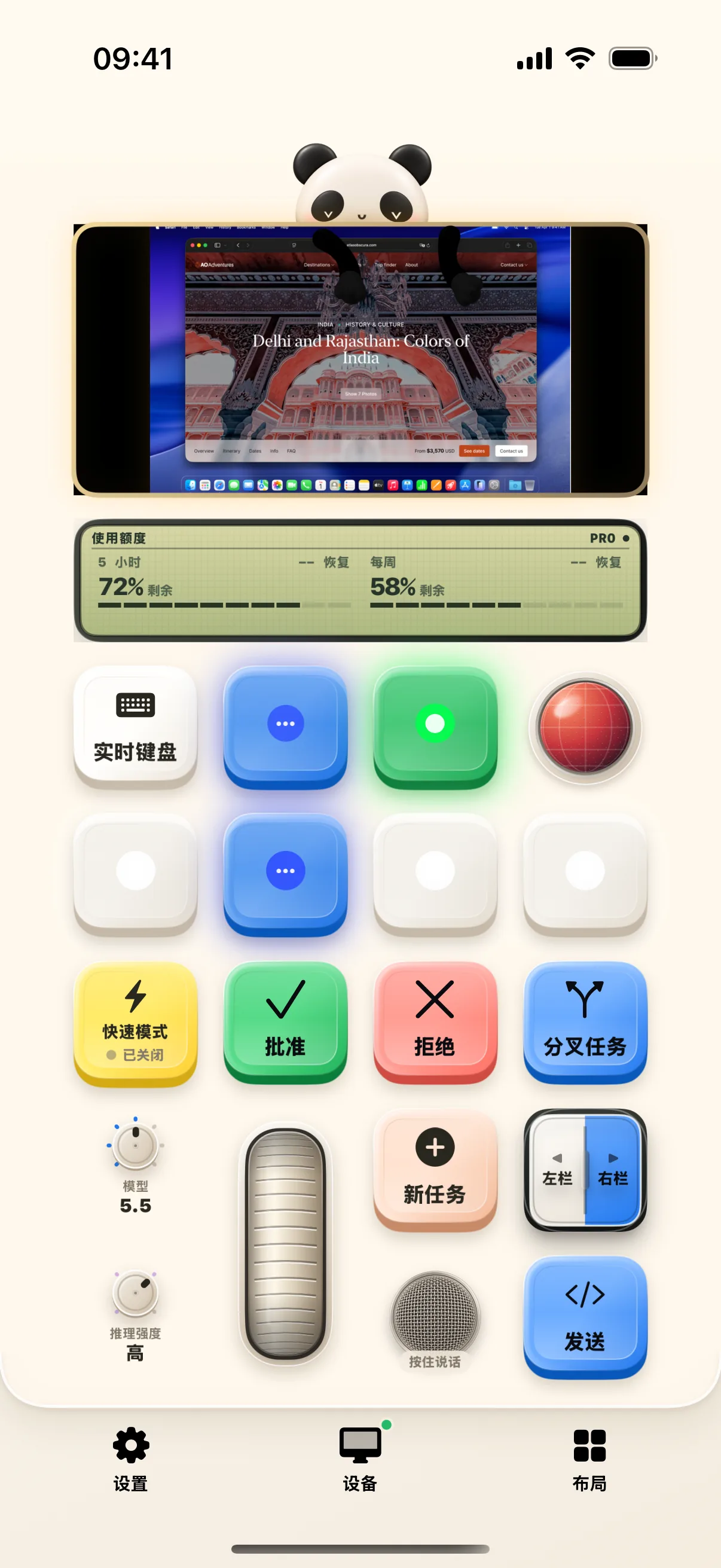
When dispatching multiple autonomous AI coding agents, monitoring progress, reviewing diff proposals, and approving terminal commands across multiple desktop windows becomes chaotic. NinoPad's Codex layout provides a dedicated physical-style command bridge for parallel agent orchestration.
1. Monitor Parallel Task Slots
View running AI tasks across active workspace slots. Real-time indicators show whether each agent is thinking, modifying code, or waiting for permission.
2. Single-Click Preview & Double-Click Focus
Tap a slot once to inspect live agent logs on your phone screen. Double-tap to focus the corresponding terminal or IDE window on your Mac immediately.
3. Dial Reasoning Effort with Rotary Knob
Turn the tactile reasoning knob to adjust thinking budget (Low, Medium, High, Max) and model temperature dynamically before submitting prompts.
4. One-Tap Approval & Safety Gates
When an agent requests permission to execute bash commands or apply refactors, review the diff and tap "Approve" or "Reject" from your phone without switching your desktop focus.
Frequently Asked Questions
Why is the task slot name not updating?
Verify that your Mac AI coding environment (Codex, Claude Code, or Antigravity) is active and running a session. The display updates live once tasks are detected.
Does an empty quota indicator mean zero balance?
No. When quota info cannot be read, it displays as uninitialized rather than zero. Check your provider's dashboard for accurate real-time usage.