Typing the same email addresses, customer support greetings, markdown tables, or terminal flags over and over wastes hours every week. Turn them into vibrant physical-style buttons on your mobile deck.
1. Create a Quick Text Button
Enter the layout editor on NinoPad, tap "Add Widget", and choose "Text Snippet".
2. Enter Snippet Content & Label
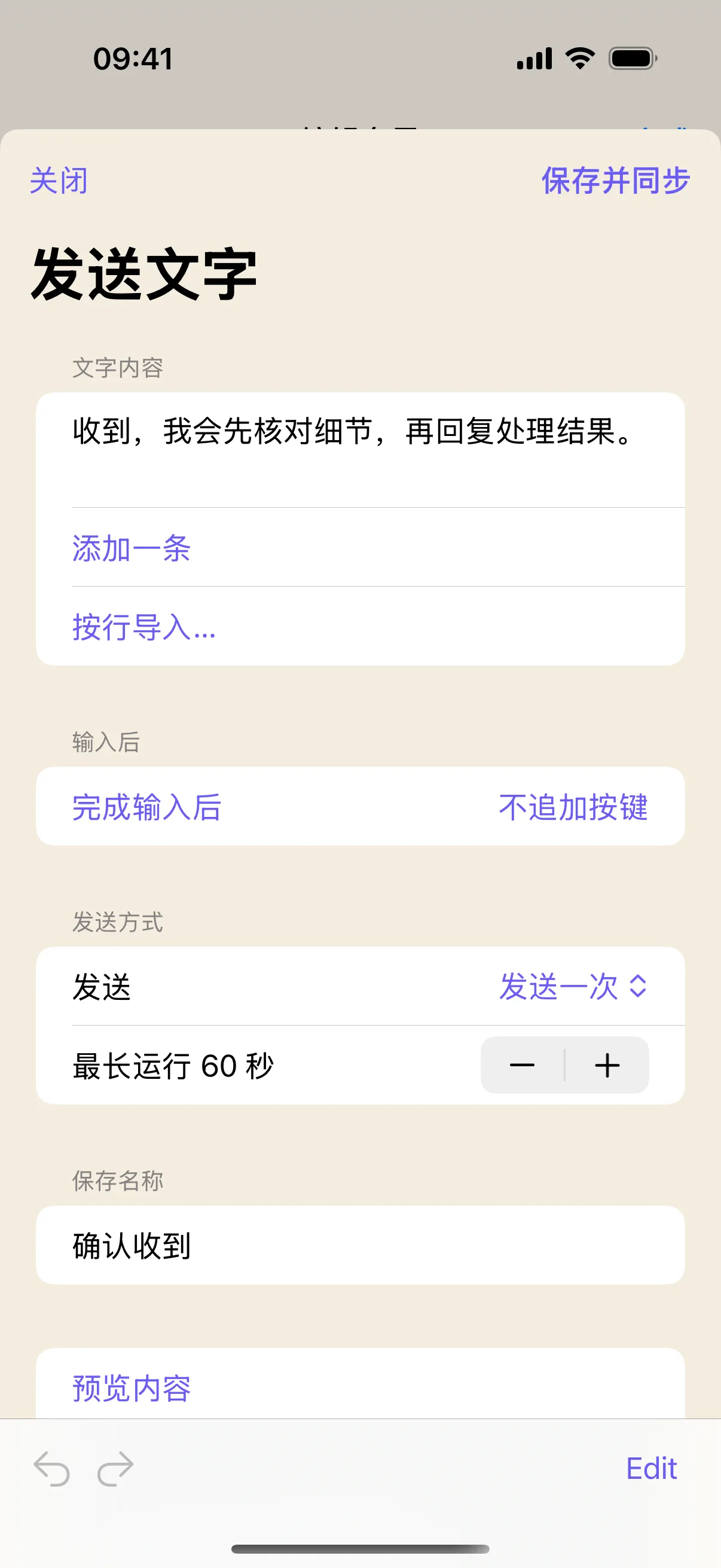
Type the text content you want to inject (e.g., standard billing address, markdown template, or git commit template) and assign a clear display name.
3. Choose Return/Enter Behavior
Choose whether to keep the cursor immediately at the end of the text or append a Return keypress to submit messages instantly.
4. Tap to Inject Instantly into Mac
Click your Mac cursor into any input field, browser text box, or IDE, and tap your new button on NinoPad. The text streams in instantly.
Frequently Asked Questions
Will text injection break formatting in rich text editors?
NinoPad sends clean Unicode text events that adapt naturally to whatever font, size, and styling are active at your cursor location.
Can I configure a button to auto-send a message immediately?
Yes. Toggle 'Append Return' in the button action settings, and NinoPad will press Return/Enter immediately after injecting the text snippet.