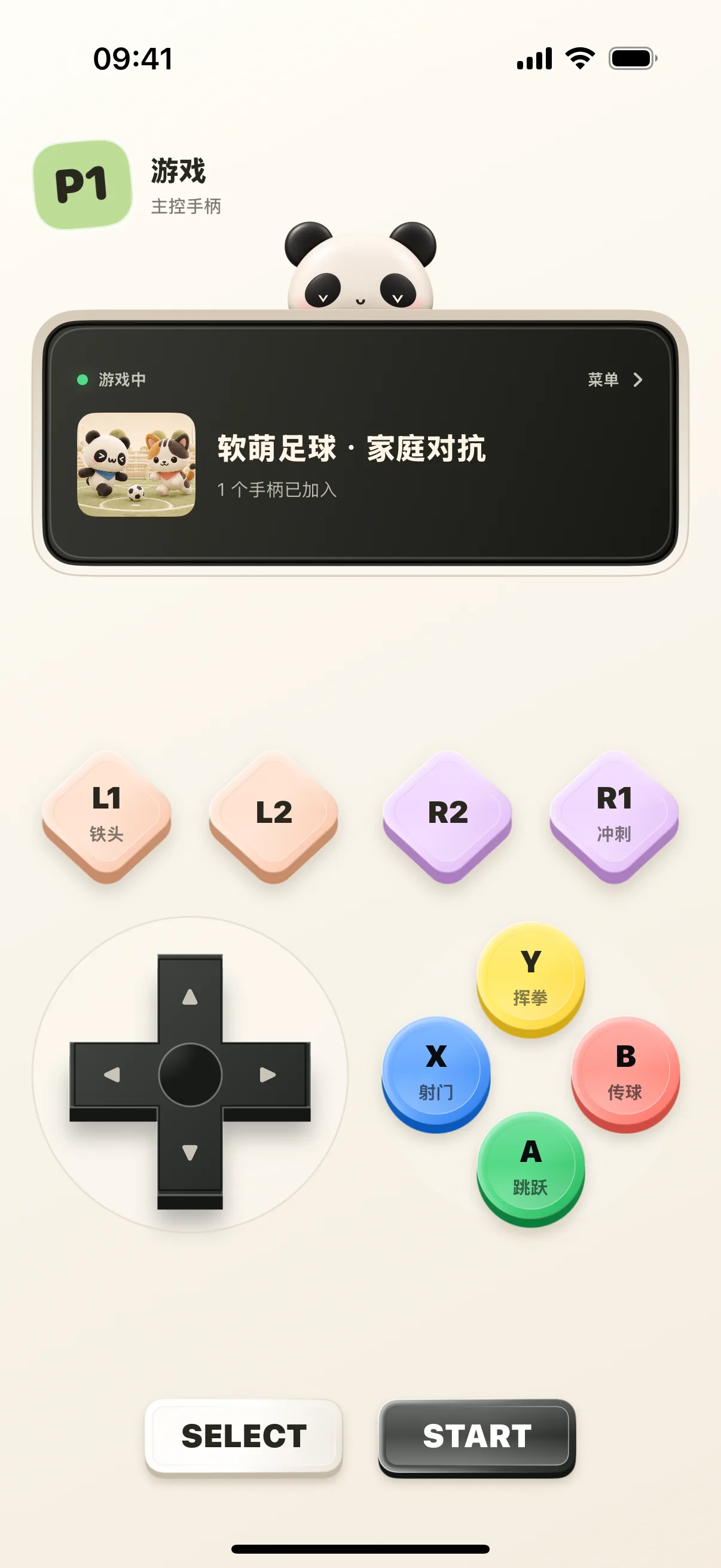
Jump into retro party games without hunting for physical controllers. NinoPad's Arcade layout transforms your mobile device into a low-latency gamepad with a responsive 8-way D-pad, tactile ABXY buttons, L/R shoulder bumpers, and crisp haptic vibration.
1. Launch Arcade on Your Mac
Open NinoPad Arcade (or visit arcade.ninopad.com) on your Mac desktop to display the active lobby.
2. Pair Mobile and Select Arcade Layout
On your phone, select the "Arcade" preset layout to connect automatically to the Mac host over local Wi-Fi.
3. Claim Player Slot & Test Input Response
Tap your designated player slot (e.g., Player 1) on the central LED screen. Press the D-pad and ABXY buttons to verify instant cursor and character responsiveness on your Mac display.
4. Rotate to Landscape for Full Shoulder Buttons
Turn your phone horizontally to activate ergonomic two-handed controls with dedicated L1/L2 and R1/R2 shoulder triggers.
5. Connect Additional Devices for Multiplayer
Invite friends to scan the Mac pairing code with their phones to join the match as Player 2, 3, or 4 for instant couch co-op gaming!
Frequently Asked Questions
How many players can join a local Mac game simultaneously?
NinoPad Arcade supports up to 4 simultaneous mobile devices acting as Player 1, Player 2, Player 3, and Player 4 over the same Wi-Fi network.
Can I use NinoPad as a controller in Steam or Mac emulator games?
Yes. NinoPad emulates standard HID gamepad inputs, making it compatible with Mac native games, Apple Arcade, Steam, and emulators.